VR KANOJO

VR KANOJO

Online Manual

Introduction

Thank you for purchasing the VR-exclusive title "VR KANOJO."
Please read this manual carefully before playing to ensure a safe and enjoyable experience.

Welcome to VR KANOJO

Ding-dong...♪

You open the door to find her standing there with a shy smile.
"...Excuse me."

Story

Today is a special day that everyone dreams of.
Your girlfriend, "Sakura Yuuhi," is visiting your room for the very first time.

Watch a movie together, have her feed you cake...
In this world, it's just the two of you. Spend this special time however you wish in a private space where no one will disturb you.
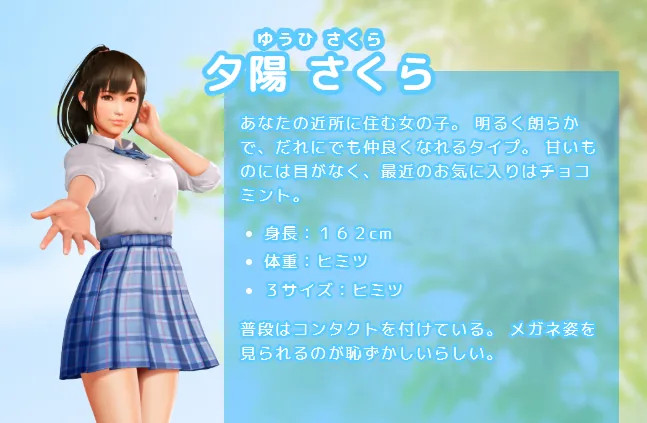
Character

Character Introduction

A girl who stays close by your side as "your one and only girlfriend."

You can dress her up in your favorite outfits and discover new sides of her in various situations.

Basic Controls

VR Controller Controls

All in-game controls are performed using your VR Controllers.

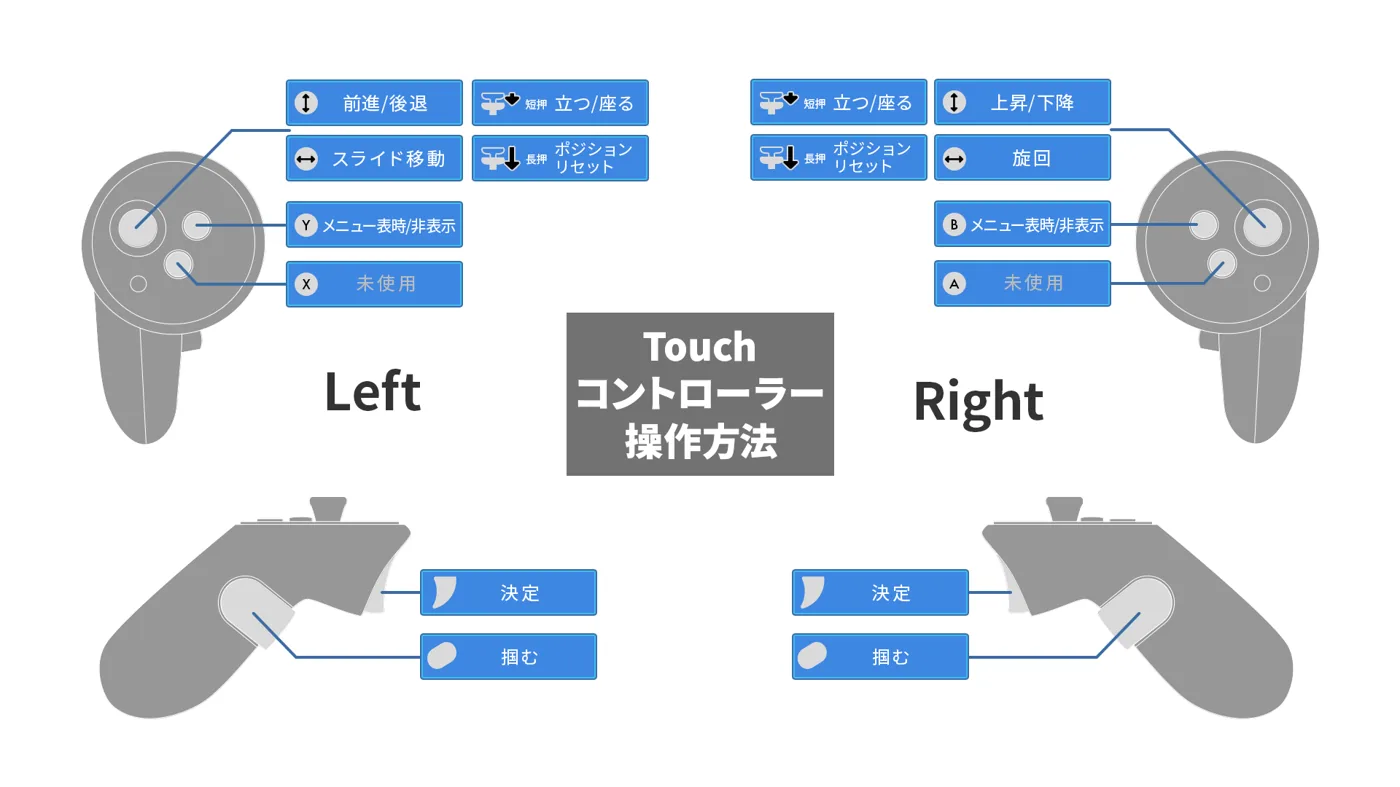
Touch Controller

Touch Controller

Right Hand
Thumbstick Directional Input: Movement
(Up/Down: Ascend/Descend, Left/Right: Rotate)
Press [Short]
- Toggle Stand/Sit
Press [Long]
- Reset Position
Quest ButtonNot used
Grip ButtonGrab
TriggerConfirm
A ButtonNot used
B ButtonShow/Hide Menu
Left Hand
Thumbstick Directional Input: Movement
(Up/Down: Forward/Backward, Left/Right: Strafe)
Press [Short]
- Toggle Stand/Sit
Press [Long]
- Reset Position
Menu ButtonNot used
Grip ButtonGrab
TriggerConfirm
X ButtonNot used
Y ButtonShow/Hide Menu

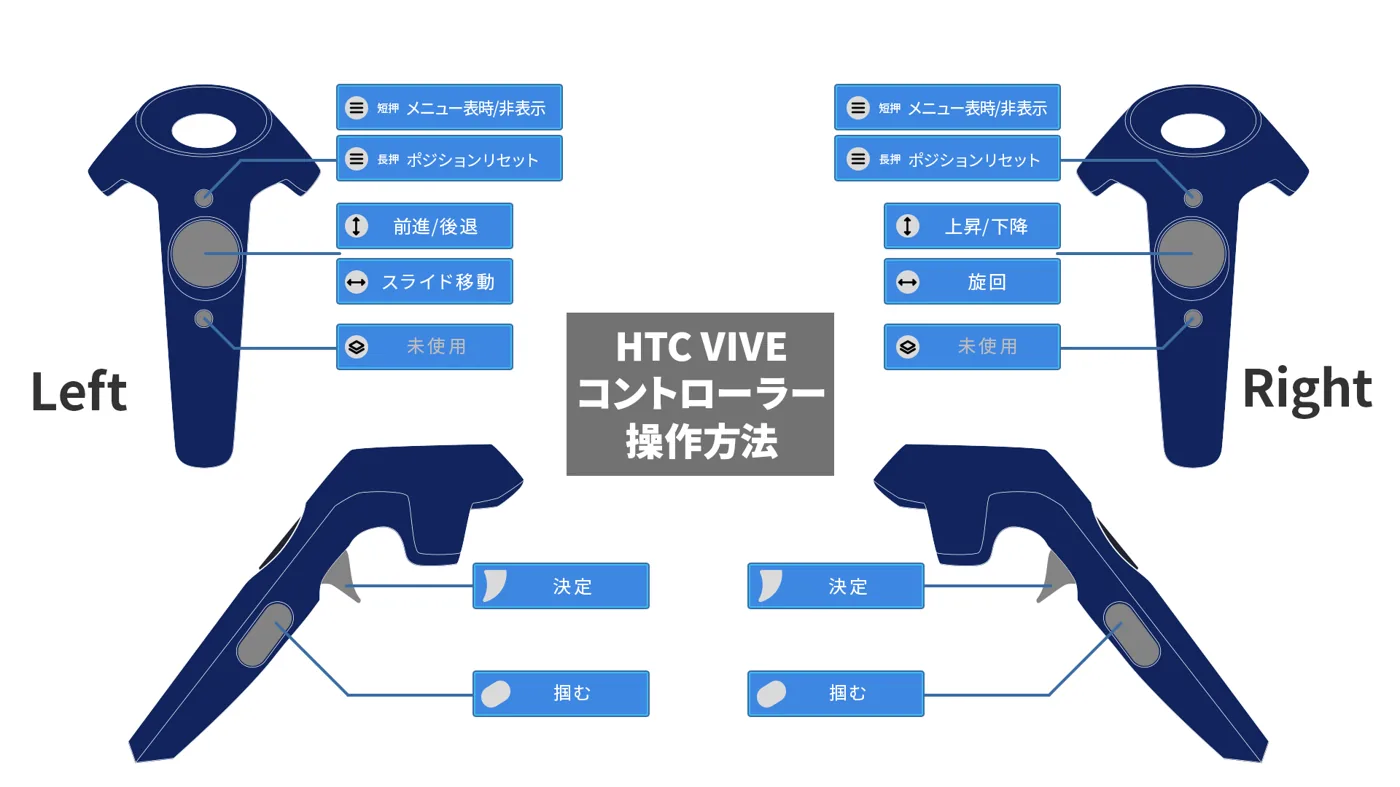
HTC Vive Controller

HTC Vive Controller

Right Hand
TrackpadMovement (Up/Down: Ascend/Descend, Left/Right: Rotate)
Menu Button [Short Press]
- Show/Hide Menu
[Long Press]
- Reset Position
System ButtonNot used
Grip ButtonGrab
TriggerConfirm
Left Hand
TrackpadMovement (Up/Down: Forward/Backward, Left/Right: Strafe)
Menu Button [Short Press]
- Show/Hide Menu
[Long Press]
- Reset Position
System ButtonNot used
Grip ButtonGrab
TriggerConfirm

How to Play

This section explains how to get started, from the title screen to post-clear content.

Starting from the Title Screen

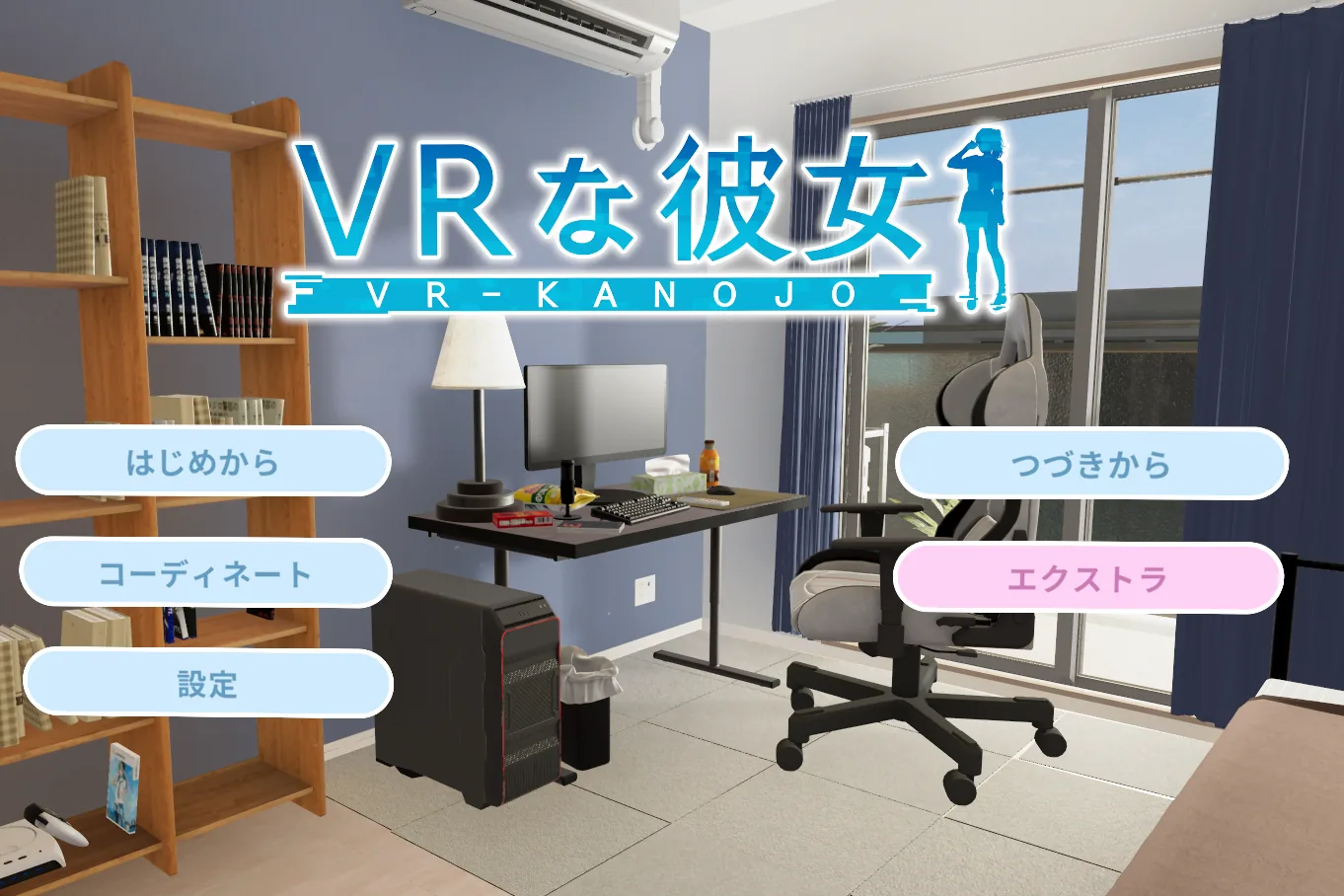
When you launch the game, the title screen will be displayed. From here, you can begin the story with your girlfriend or configure various settings.

Title Screen

New GameStart a new story with your girlfriend.
ContinueSelect and replay a specific scene you have already experienced. Choose this when you want to enjoy a favorite scene again.
CoordinateA mode where you can freely change your girlfriend's outfits and hairstyles.
*This option becomes available after clearing the main game once.
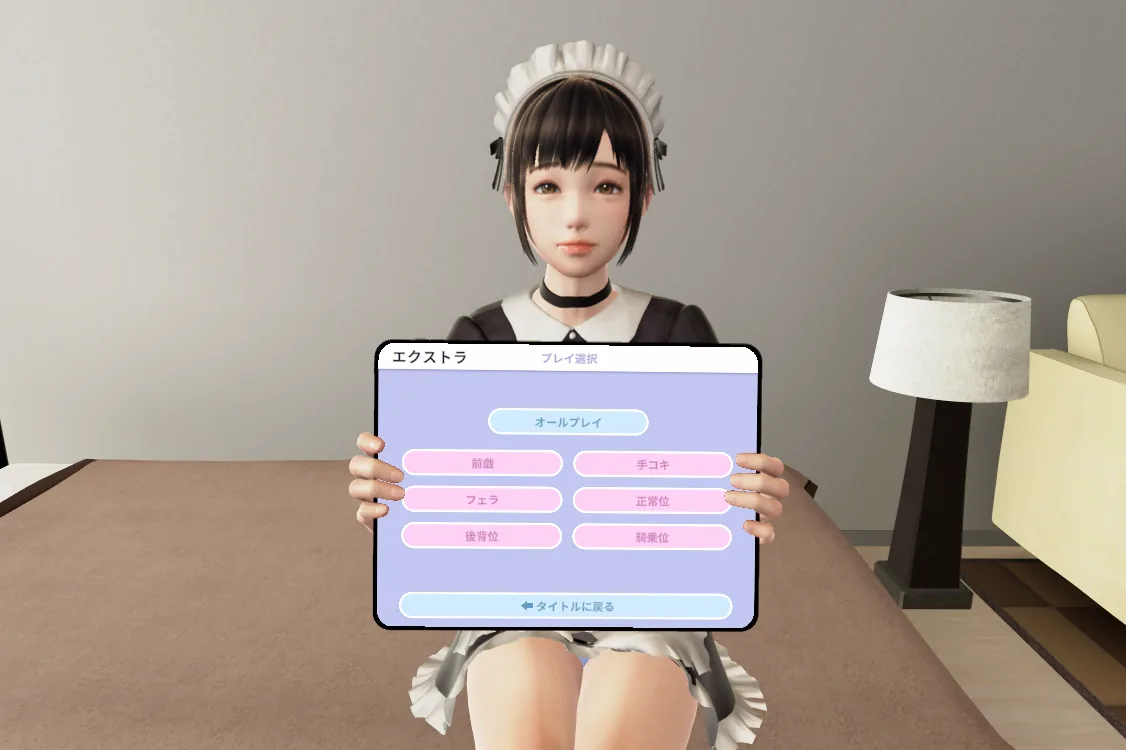
ExtraA mode where you can freely experience special situations different from the main story.
*This option becomes available after clearing the main game once.
SettingsConfigure various settings related to VR play, including controls and sound.

Story Mode (Main Game)

Select "New Game" from the title screen to begin the story with your girlfriend.
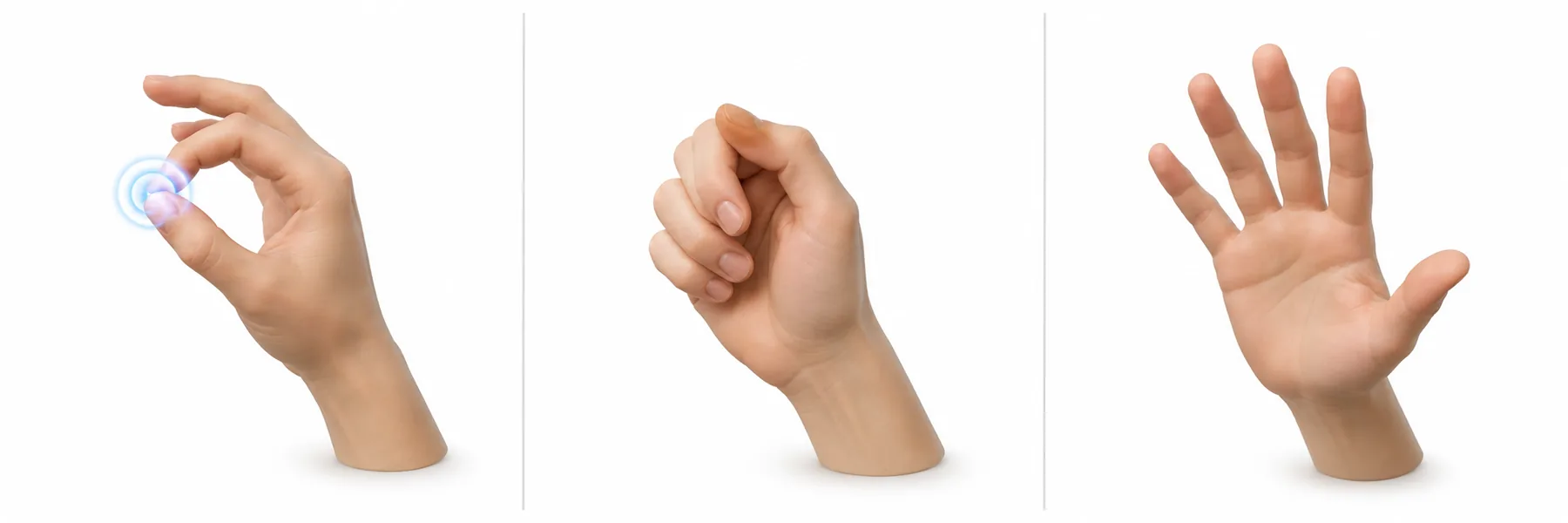
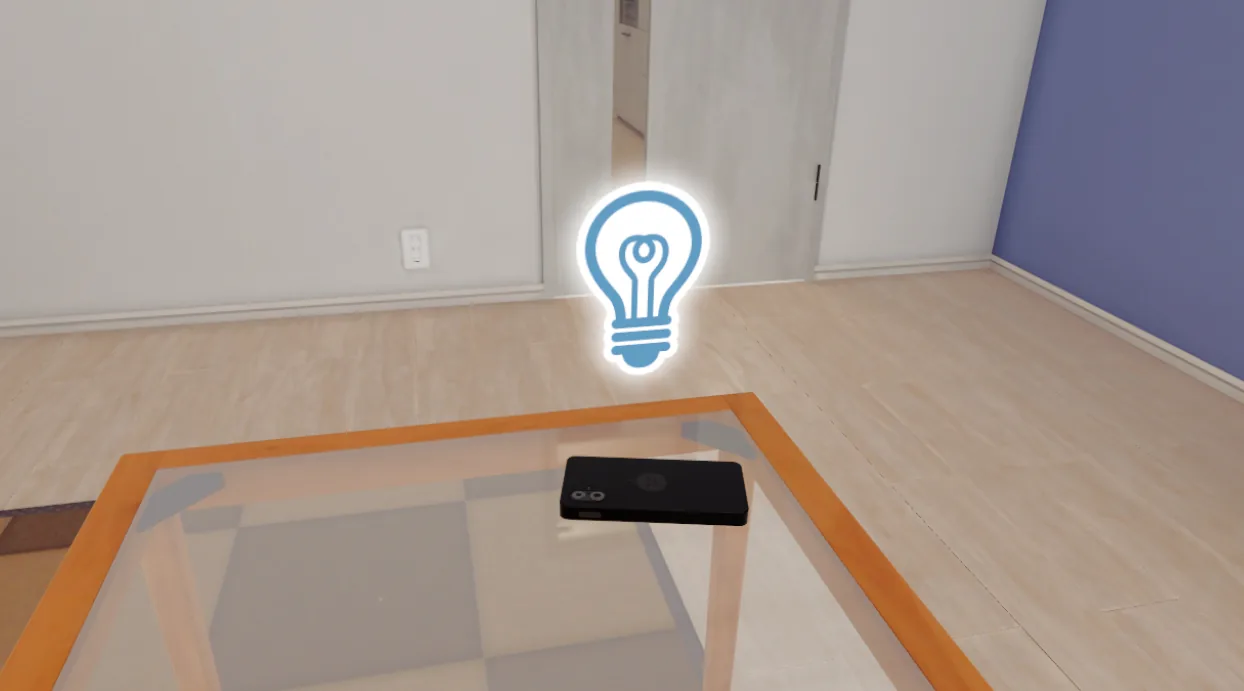
Use your controller to select icons displayed in the space to progress the story.

Icon Controls

Icon Controls

As you progress through the game, icons will appear in the space around you.
Select and confirm an icon with your controller to advance the story or trigger various actions.

Interactive Sequences

Interactive Sequences

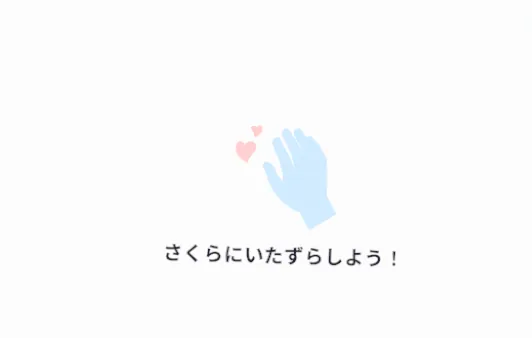
During the story, you may enter "interactive" sequences where you can freely interact with Sakura. In these sequences, you can tease her, observe her closely, and enjoy various forms of communication as you see fit.

NEXT Icon

NEXT Icon

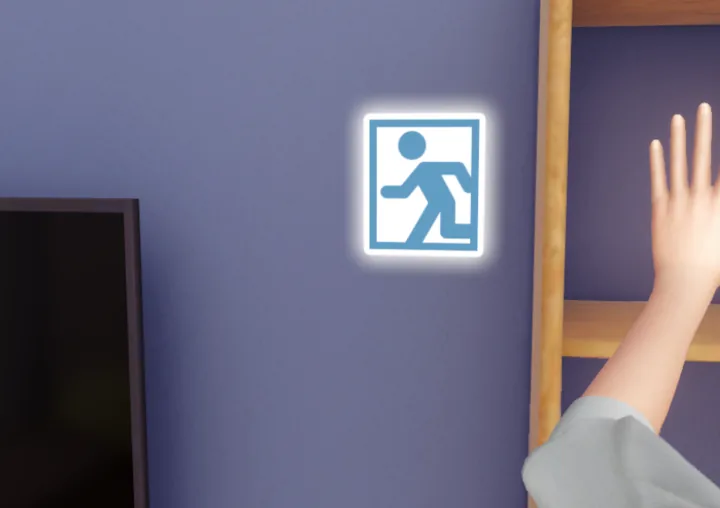
When you want to end an interactive sequence and continue with the story, select the "NEXT Icon" displayed in the space.

Post-Clear Content

After clearing the main game once, "Coordinate" and "Extra" become available from the title screen, expanding your range of enjoyment.

Coordinate (Dress-Up)

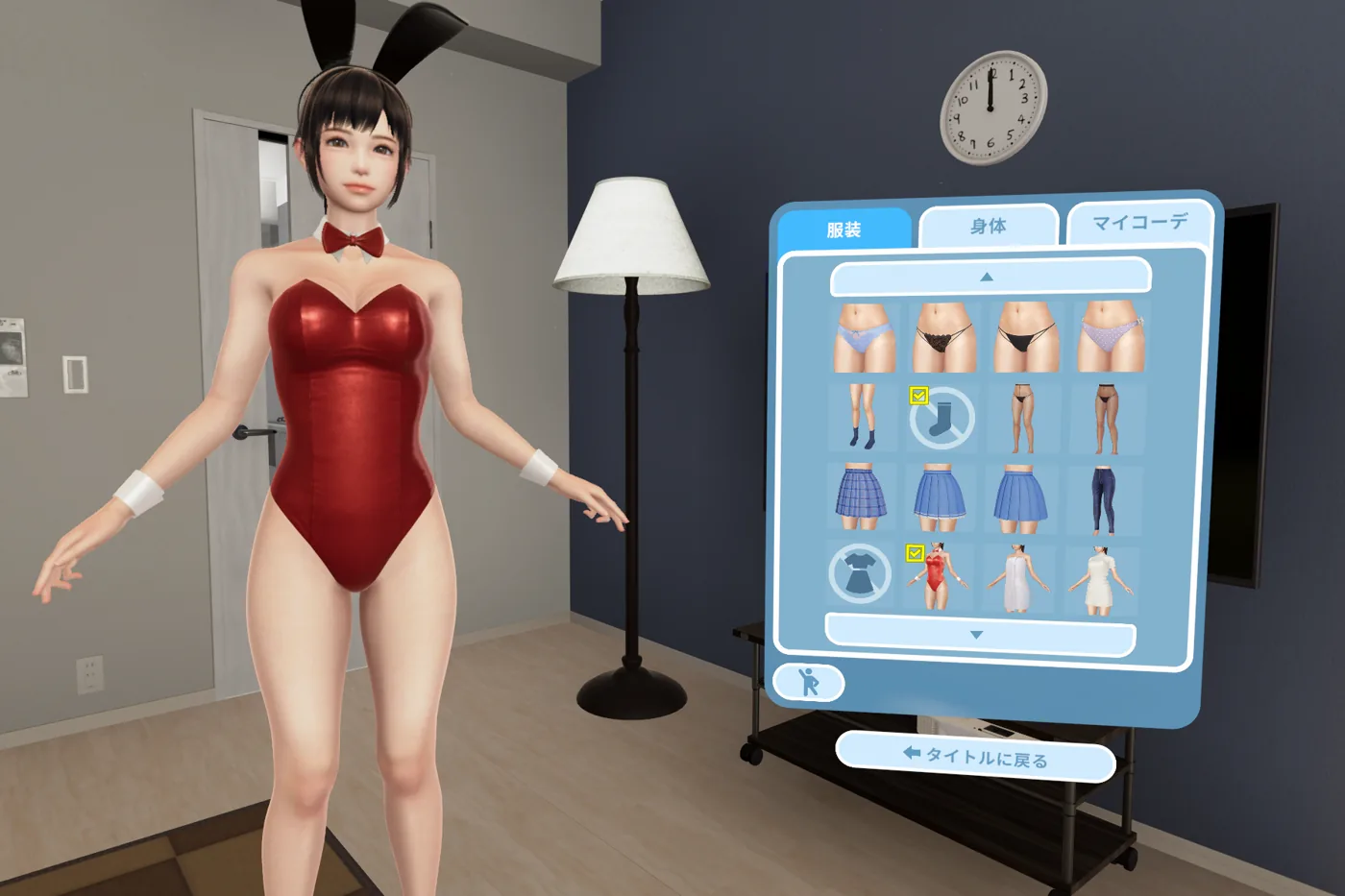
In this mode, you can customize Sakura's outfits and hairstyles to your heart's content. Create your ideal girlfriend.

Coordinate (Dress-Up)

ClothingChange outfits by individual parts.
BodyModify certain body features.
My CoordsSave your customized outfits.
Coord CheckChange poses to check the outfit.
Return to TitleReturn to the title screen.

Extra Mode

A mode where you can freely enjoy special situations different from the main story.

Extra Mode

Play Select (All)Experience a full sequence of play.
Play Select (Individual)Choose and experience individual plays.

Settings

You can change various VR play settings by selecting "Settings" from the title screen or opening the menu during gameplay.

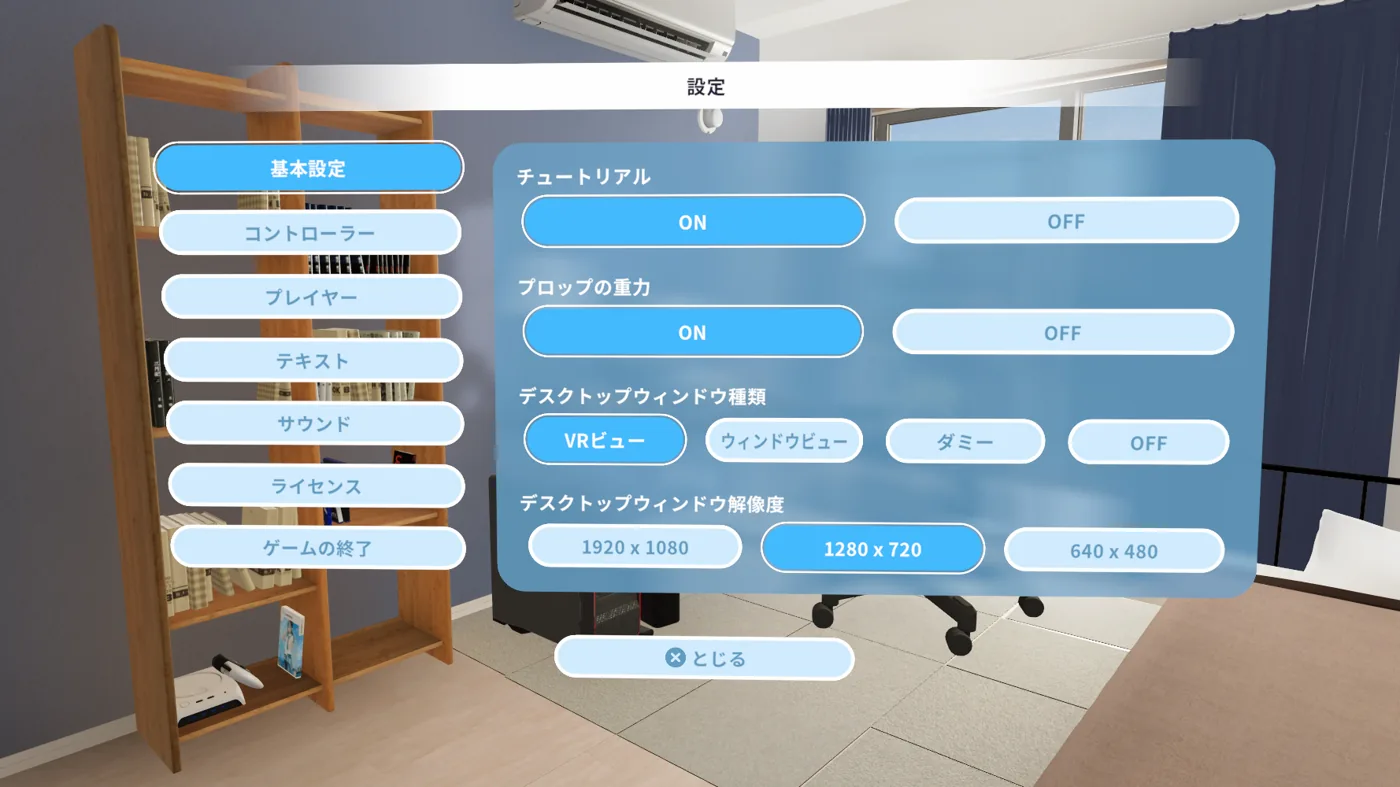
General Settings

Basic environment settings for the game.

General Settings

TutorialToggle the tutorial display on/off.
Prop Gravity Sets whether gravity affects interactive objects (props) in VR space.
When ON, props will fall when released from your hand.
Desktop Window Type Changes the type of game display shown on your PC monitor.
VR ViewDisplays what you see in VR directly.
Window ViewDisplays a standard game screen.
DummyDisplays a dummy image.
OFFDisplays an OFF image.
Desktop Window ResolutionChanges the resolution of the game display on your PC monitor.

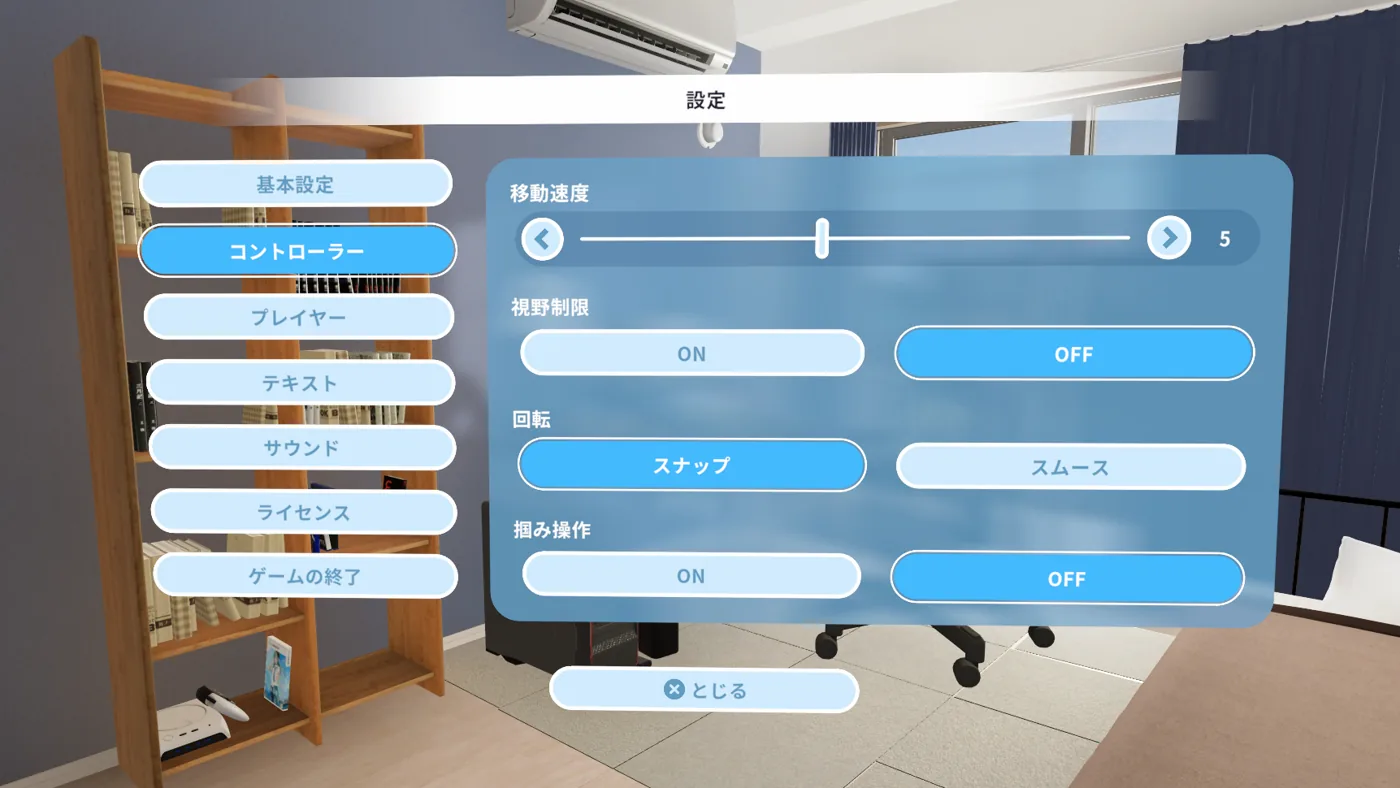
Controller

Settings related to movement and camera controls.

Controller

Movement SpeedChanges the player's movement speed.
FOV RestrictionToggles the field-of-view restriction feature to reduce VR motion sickness.
Rotation Changes how the player turns.
  • Snap: Rotates instantly by a fixed angle.
  • Smooth: Rotates smoothly.
Grab ControlsWhen ON, allows you to grab certain props in the room.

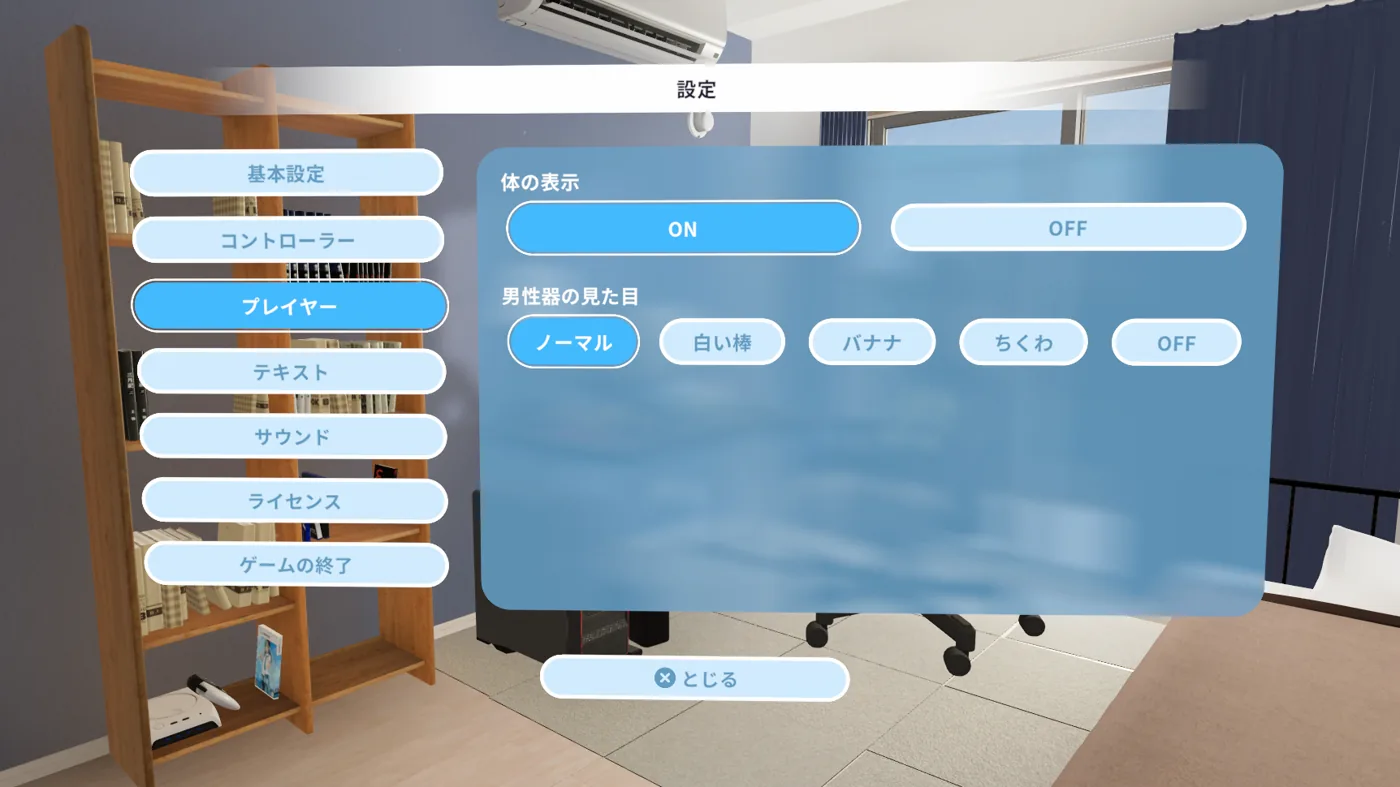
Player

Settings related to the player's own display.

Player

Body DisplayToggle the player's body visibility on/off.
Genitalia AppearanceChange the appearance of the player's genitalia.

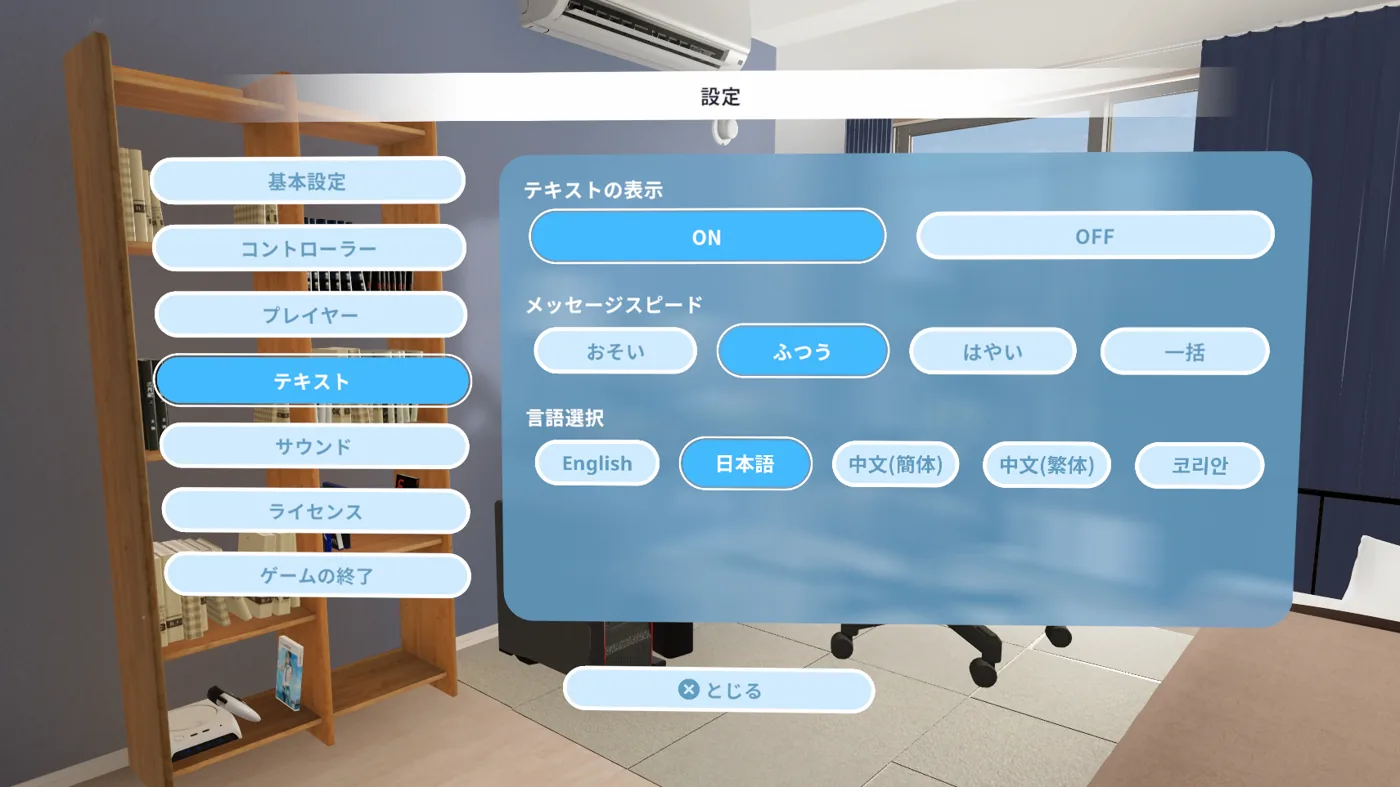
Text

Settings related to in-game text display.

Text Settings

Text DisplayToggle text messages on/off.
Message SpeedChanges the speed at which text messages are displayed.
LanguageChanges the in-game language.

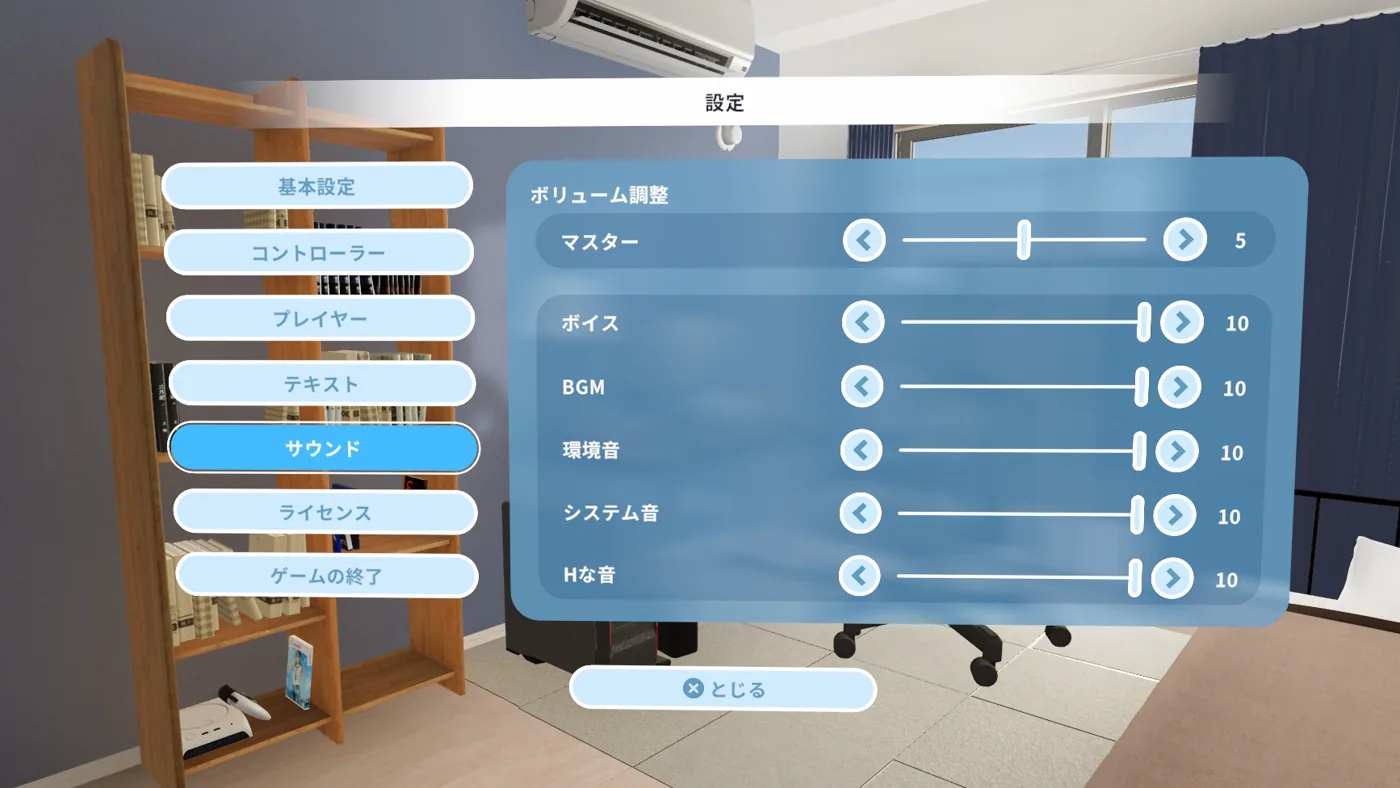
Sound

Settings related to overall game audio.

Sound

Volume
MasterChanges the overall game volume.
Individual Volume
VoiceChanges the character voice volume.
BGMChanges the background music volume.
SystemChanges the system sound volume (e.g., confirmation sounds).
H SoundChanges the H sound effects volume.

License

Displays license information for the software used.

Return to Title

Closes the current menu and returns to the title screen.

Quit Game

Exits the game and returns to the desktop.

TOP